Tips for the running season: what helps while your camps are under way
2026-07-21
For operators, back office, camp management
In the middle of the season there is rarely time to explore the
system. Yet that is exactly when the cases show up that never occur
in winter: someone leaves early, a place suddenly frees up, the
travel documents need to go out. We have collected the functions
that help most while your camps are actually running.
When things do not go to plan
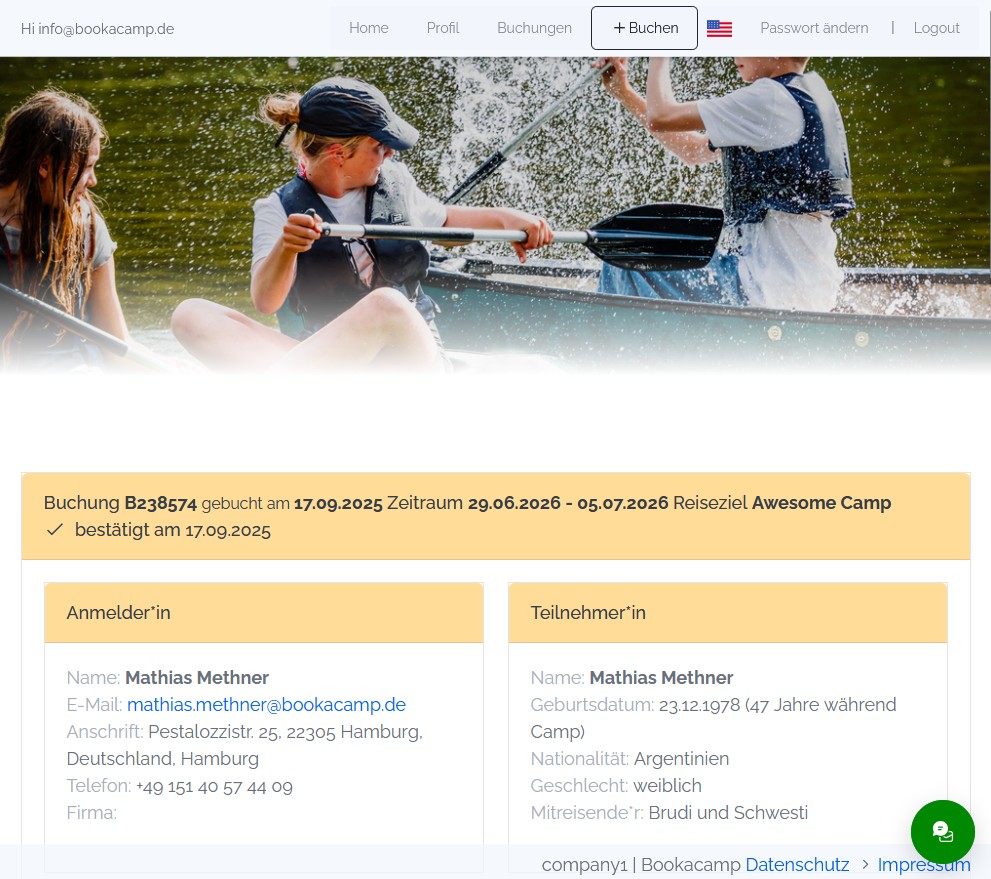
If someone has to end their trip early, record it on the booking via
Other actions › Journey abort. The booking gets
its own aborted status, and the detail page shows the date
and the reason — properly documented, while the full travel price
remains chargeable. If someone cancels outright, you can attach a
cancellation fee during cancellation, for individual
bookings and collective registrations alike. And if that frees up a
place, fill it straight from the waiting list; the
system remembers when the booking e-mail was sent so it does not go
out twice.
Bookings once a session has started
The internal booking form (top of the page, next to
the search field, behind + Book) lets you add participants to
sessions that have already started or were never published. Because it
can override capacities and session settings, this form is meant
strictly for your back-office team — the link does not belong in
customers' hands.
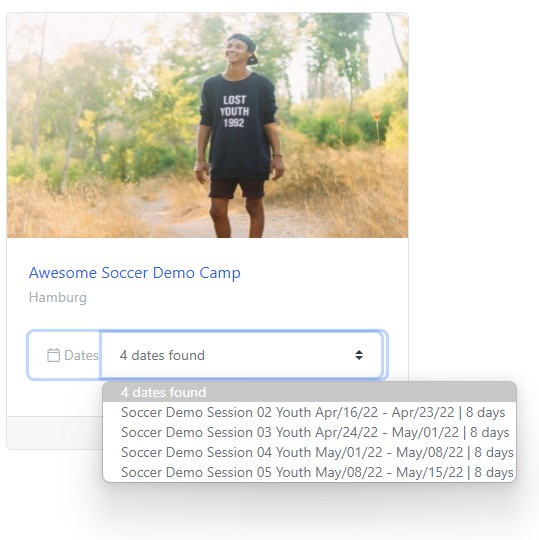
If someone switches session or location at short notice, remember the
service group after rebooking: it stays on the
original variant and can be adjusted via Edit booking.
Otherwise the person shows up in the wrong programme in the daily
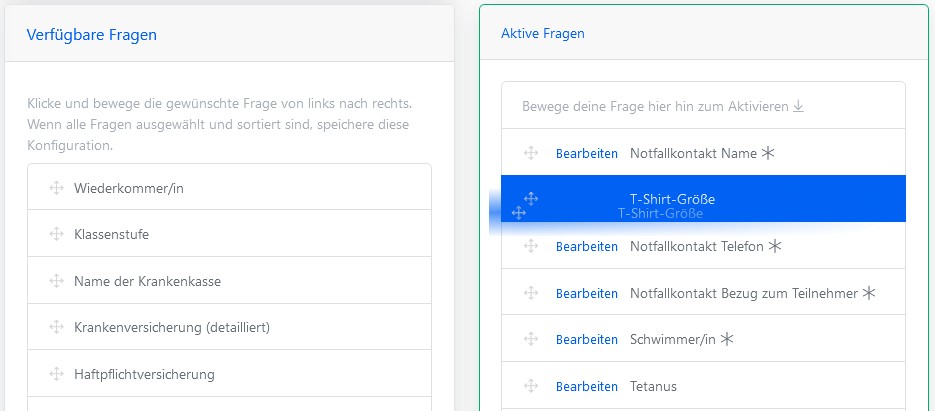
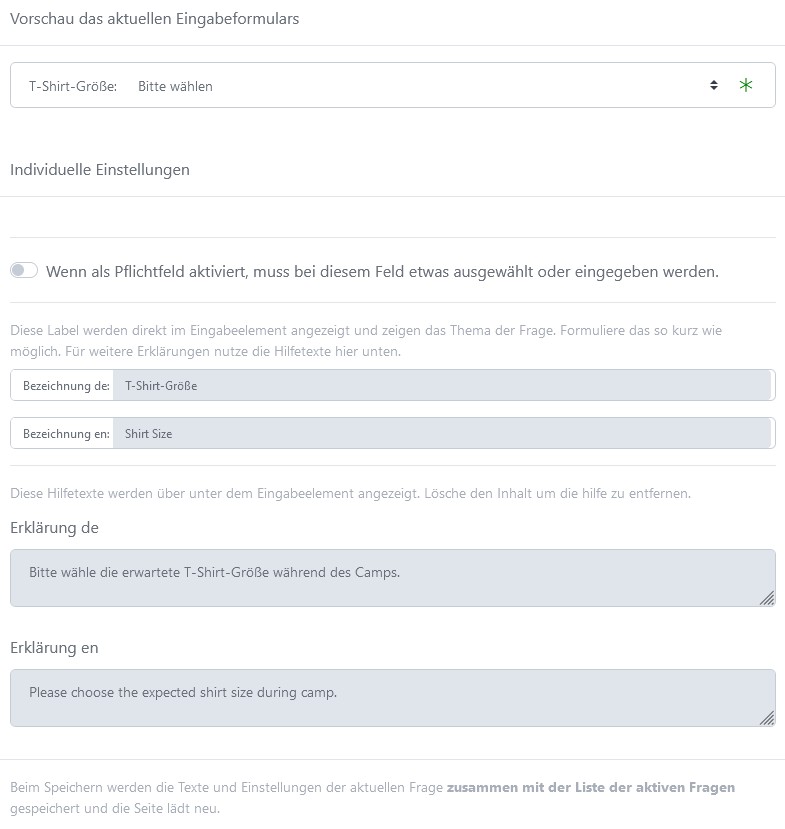
occupancy. Answers to free questions — photo
consent, permission to travel home alone, swimmer or non-swimmer
— can be added at the same place at any time.
Communication and payments
In the booking module, the travel documents filter
lists every booking that has not yet received the documents e-mail
— tick, send as a batch, done. For short-notice information such
as a changed meeting point, send a free e-mail text to the selected
bookings and optionally put a colleague in CC.
Under Booking balance › Pending payment you find
every booking that has not been paid in full. You can filter by days
until the session starts and send payment reminders and dunning
letters as a batch from there. If an amount has to go back after the
trip, create a voucher code with a fixed or percentage value under
Templates › Discounts, mark it as selectable in the back
office only and apply it via Edit booking — and do not
forget create a new invoice at the bottom of the page.
Keeping an overview on site
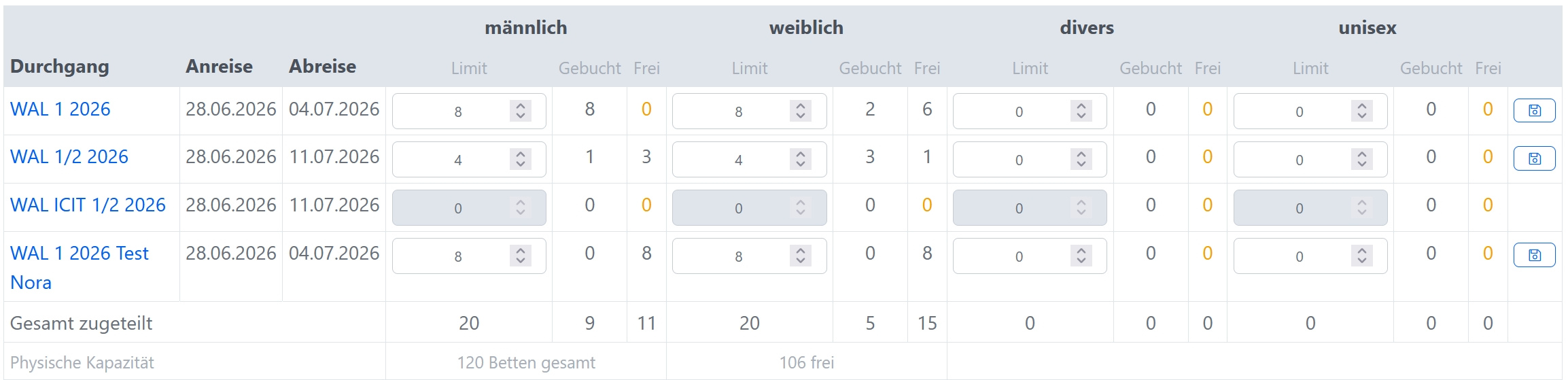
Under Locations › Daily Occupancy you see every running
session for a location and date: booked services, capacity per
accommodation category and the participants with arrival and
departure, room number and preferred room-mate — exportable to
Excel. For the team on site there are participant lists as Excel and
PDF exports; if you have issued a profile login for counselors, your
crew can access them straight from their phones. The kitchen plan sits
under PMS › Kitchen, including a free note field for
special requests that fit no category.
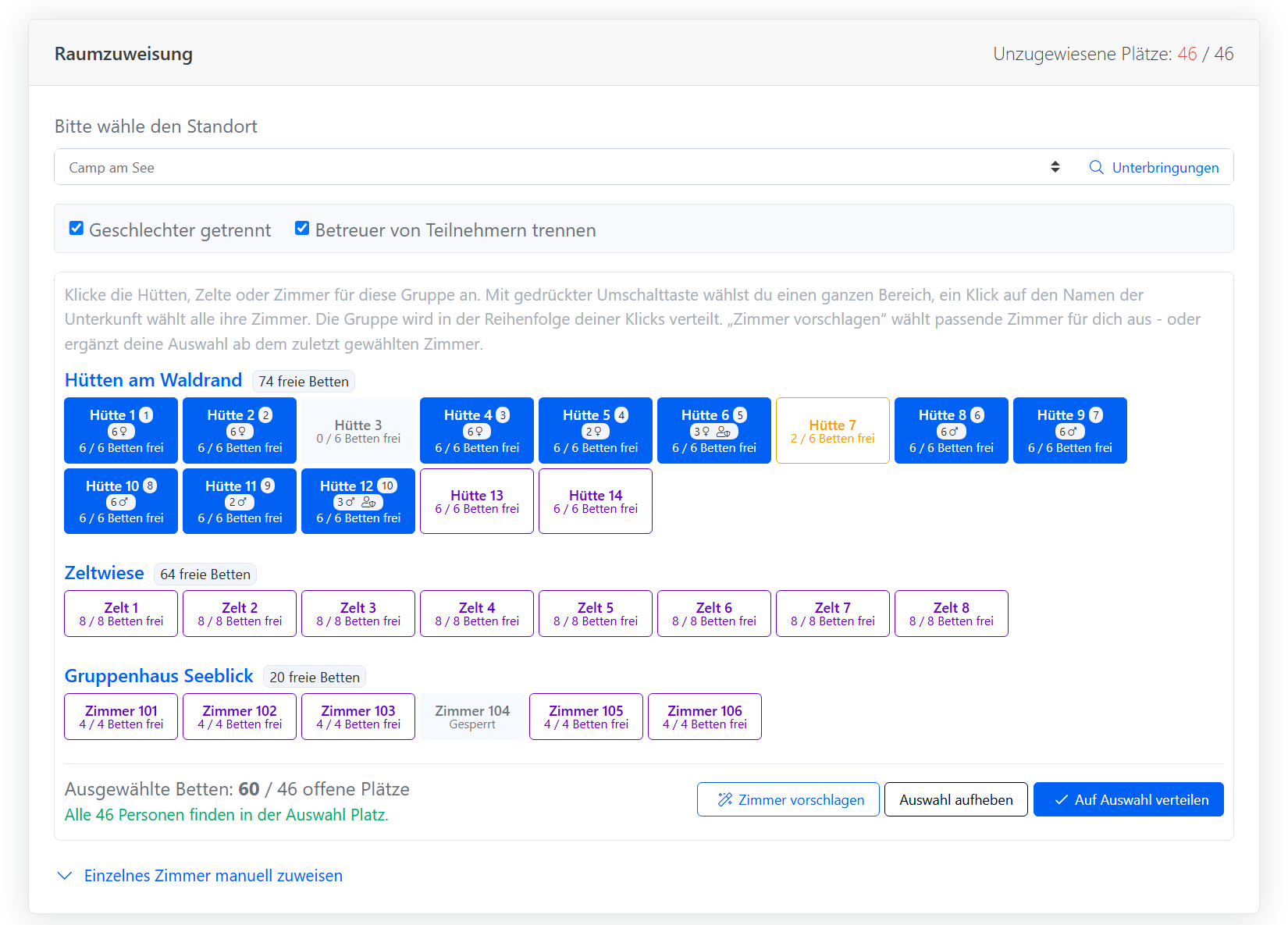
Rooms are assigned in the workload scheduler by drag and drop, and the
automatic assignment takes over most of the work on request. For
arrival there is a QR-code ticketing system embedded
directly on the invoice, and your counselors can mark bookings as
checked in or checked out from the profile login. Every booking also
holds up to three emergency contacts — it pays to
export those lists before the start in case connectivity on site is
poor.
The classic: "I cannot log in"
When customers or counselors report that their login does not work, it
is almost always because they landed on the sign-in page for
back-office users. Customers and counselors have their
own access; you find the link for your company at the
top right under the globe icon, in Integration. The rule of
thumb for support cases: if there is no logo on the sign-in screen,
they are at the wrong door.
And if something does go wrong: type
@BookacampSupport into the note field of a booking,
write your request behind it and save the note — a support ticket
is created automatically in the background, including a reference to
the record. No more hunting for booking numbers.
Author: Mathias Methner
Link of the article